

Print Servers price list
Last updated Tuesday, Nov 3, 2026




Loading...
Last updated Tuesday, Nov 3, 2026
A print server can make shared printing far simpler. Instead of connecting one printer to one computer and hoping everyone remembers which device is available, a print server places the printer on your network. Multiple users can then access it from compatible computers, whether they connect through a wired network, Wi-Fi, or a dedicated wireless signal.
For homes, small offices, classrooms, shops, warehouses, and other shared environments, this can feel like turning a single-lane road into a small highway. The Wavlink USB 2.0 Wireless Printer Server featured in the reference data is designed around that idea, offering several connection modes, USB 2.0 support, and network bridging features in a compact enclosure.
This guide explains what the device offers, who may benefit from it, and what to consider before choosing a print server. ZoneOffer is a comparison site, so it helps you review product information and compare available offers rather than acting as the seller itself.
A print server is a networking device that allows one or more computers to share access to a printer. Rather than requiring a printer to remain directly connected to a single workstation, the server connects the printer to the network and manages communication between users and the device.
This setup can be useful when several people need to print from different rooms or workstations. It may also reduce cable clutter and make a printer easier to position. Depending on the model, users can connect through Ethernet, Wi-Fi, or another supported networking method.
Imagine an office where every employee needs to send documents to one printer. Without a network connection, someone may need to move a USB cable, transfer a file, or keep one computer switched on all day. A print server helps remove that bottleneck by making the printer available across the local network.
The right setup can be especially practical for small businesses, home offices, educational institutions, and work areas where several computers rely on the same printer. It can also help organize shared equipment without requiring each user to have a separate printer.
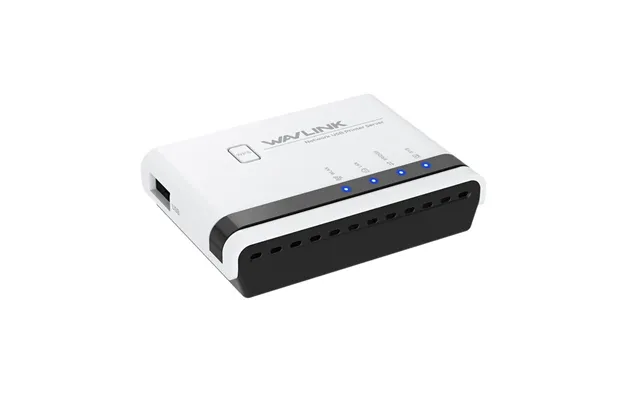
The Wavlink USB 2.0 Wireless Printer Server is designed to support shared USB printing through wired and wireless connection modes. The product listing identifies the model as WL-NU516U1 and describes three operating modes: wired mode, wireless mode, and standalone mode.
In wired or wireless mode, the device can connect with a router. In standalone mode, it broadcasts a Wi-Fi signal that computers can use to connect to the printer server. This gives users more flexibility when planning a network, particularly when running a network cable directly to the main router is inconvenient.
The listing also states that the device is compatible with Windows XP, Windows 7, Windows 8, Windows 10, Windows 11, and Mac OS. Compatibility can still depend on the specific printer and computer configuration, so checking your equipment before purchase remains a sensible step.
The print server has a compact palm-sized design. Its listed dimensions are approximately 2.95 inches long, 2.13 inches wide, and 0.70 inches high. It weighs about 1.5 ounces, making it easy to place beside a printer, router, or workstation without taking up much room.
The product is listed in white and uses a PC and ABS construction. Its network cable is approximately 3.61 feet long, while the power adapter cable is approximately 3.28 feet long. These cable lengths may help with basic placement, although your available outlets and network layout will determine the most convenient position.
One of the key attractions of this Wavlink model is its selection of operating modes. Each mode suits a slightly different network arrangement, so understanding the differences can help you choose the most practical setup.
In wired mode, the print server connects to a router using a network cable. This approach may suit users who prioritize a direct network connection or who prefer to keep wireless traffic to a minimum.
A wired connection can also be useful when the print server and router are located near each other. The device includes two 10/100 Mbps ports, and the listing describes them as supporting LAN and bridging functions. That can help the unit connect with an existing network while also extending network connectivity.
Wireless mode allows the print server to connect through Wi-Fi instead of relying only on a physical network cable. This can make printer placement more flexible, especially in rooms where running a cable would be awkward.
Wireless printing can be convenient for households and small offices where users move between computers or use laptops. However, the quality of any wireless setup depends on factors such as distance, obstacles, and the surrounding network environment.
In standalone mode, the product broadcasts its own Wi-Fi signal. Computers can connect to that signal and share the printer through the print server. This may be useful when you want a direct wireless connection rather than connecting the device through a separate router.
Think of standalone mode as a private meeting point between the computers and the printer. It gives you another way to organize access when a conventional router-based arrangement does not fit your space.
The USB port follows the USB 2.0 standard and is intended to support stable printing service. The listing states that the device works with most mainstream USB-interface printers. That broad compatibility can make it a useful option for users who already own a USB printer and want to share it across several computers.
The product description also says the USB-A port can support up to four printers or storage devices through a USB hub. This feature may appeal to workplaces with several connected devices, although the practical experience will depend on the hub, printer models, and network configuration.
Before choosing a print server, check the connection type on your printer. The featured product is designed around USB connectivity, so it is most relevant for printers that use a supported USB interface. A printer with a different connection method may require another type of networking solution.
Beyond printer sharing, the listing mentions support for Samba service to share USB storage. This means the device may offer an additional way to make compatible USB storage accessible through the network.
If you are interested in using this feature, consider the type of storage device, the computers that will access it, and the way your network handles shared files. Printer sharing may be your main goal, but storage access could add another layer of usefulness to the same compact device.
The Wavlink print server includes two 10/100 Mbps LAN ports. According to the product description, these support LAN and bridge functions and can help extend the network.
Bridging can be valuable when you want the print server to fit into an existing network instead of functioning as an isolated accessory. It may help connect the printer and other network equipment in a more organized way, depending on your layout.
Still, network speed is only one part of the experience. The printer itself, the computer, the router, and the size of the files being printed can all influence how quickly a job moves from one device to another. For everyday documents, a simple and stable arrangement may matter more than chasing maximum theoretical speed.
This product may be worth considering if several users need access to one USB printer. The listing specifically identifies homes, warehouses, shops, offices, e-commerce operations, small and home offices, government organizations, and educational institutions as possible use environments.
For a home office, a print server can let a desktop and laptop share one printer. In a classroom or small office, it can reduce the need for multiple printer connections. In a shop or warehouse, it may help different workstations use a printer positioned where it is most convenient.
Small workgroups often need useful features without a large, complicated infrastructure. A compact print server can serve as a middle ground: more flexible than a direct USB connection, but simpler than a large enterprise printing system.
Ask yourself a few questions before deciding. How many computers need access? Is the printer USB-compatible? Would wired or wireless placement work better? Do you also want to share USB storage? These answers can show whether the device matches your routine.
The product listing provides default access information, including a default IP address of 192.168.10.1 and a default SSID format of “netusb_xxxx.” It also lists a Wi-Fi key of “netusb12345” and default login information.
Because default credentials can be visible in product documentation, users should review the setup instructions and consider changing default access details where the configuration allows. A unique password can help reduce the chance of unwanted access to a shared network device.
It is also wise to place the printer server where it can receive a dependable signal or maintain a suitable wired connection. A neat installation is not only easier to manage; it is easier to troubleshoot when something goes wrong.
Start with printer compatibility. The listing says the Wavlink model supports most mainstream USB-interface printers, but “most” does not mean every model. Confirm that your printer uses a compatible USB connection and consider whether your operating system appears among the listed supported systems.
Next, think about your preferred connection. If the printer will sit near the router, wired mode may be straightforward. If the printer needs to be placed farther away, wireless mode may be more convenient. Standalone mode offers another possibility when you want computers to connect directly to the print server’s signal.
You should also consider whether you need only printer sharing or additional USB storage access. If storage sharing is useful, the Samba support described in the listing may be relevant. If you only need one basic printer connection, some of the additional features may be more than you require.
The reference data lists the Wavlink USB 2.0 Wireless Printer Server at $55.99 through Banggood.com. ZoneOffer presents this information as part of a comparison experience; it does not operate as the store or seller.
When comparing this offer with other print servers, look beyond the headline price. Consider connection modes, operating-system support, USB standards, network ports, storage-sharing capability, size, and the number of printers you expect to connect. A product that fits your setup can offer more value than one with a lower price but fewer suitable features.
The Wavlink USB 2.0 Wireless Printer Server offers a flexible way to share compatible USB printers across multiple computers. Its wired, wireless, and standalone modes give users several installation paths, while its compact size makes it easy to position. Support for USB storage through Samba and two 10/100 Mbps ports adds versatility beyond basic printing.
For homes, small offices, shops, warehouses, and other shared environments, it may provide a practical bridge between an existing USB printer and a networked workflow. Before purchasing, confirm printer compatibility, review your preferred connection mode, and compare the listed features with your actual needs. When the pieces fit, a small print server can make shared printing feel almost effortless.